How to reduce screen time on Android (without relying on willpower)
Read your real figure, turn it into days a year, find the two or three apps that take most of it, then make those apps impossible to open during the hours that matter. A method in six steps and one week.
Published6 min read
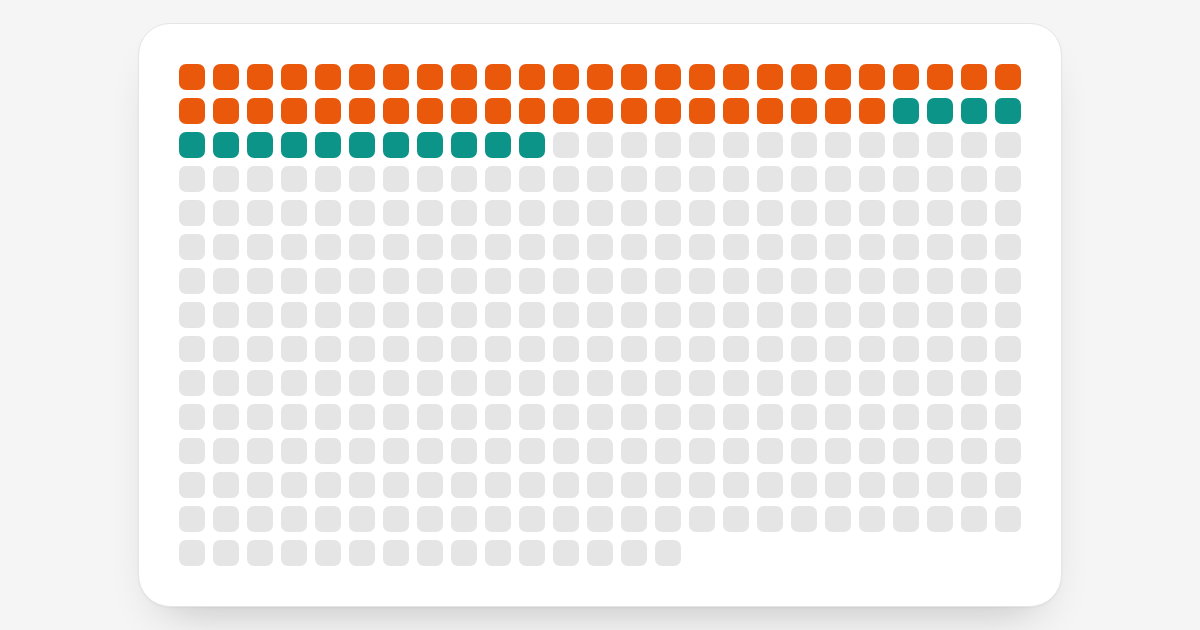
The short version. Read your real screen time instead of guessing it, and turn it into days a year so it means something. Find the two or three apps that take most of it. Then do not ration those apps across the day: block them completely during the hours that matter, remove the cues that start the reflex, and keep a record so the hours you win back are visible.
Reducing screen time fails for most people in the same place. They decide to "use the phone less", which is a wish rather than a plan, and the phone wins every individual moment because each moment is small. What works is the opposite: a few decisions made once, in advance, that hold without asking anything of you at the moment of the reflex.
1. Read the real figure, not the one you guess
Android already counts it. Open Settings → Digital Wellbeing & parental controls and you get today's screen time and the apps it went to; the chart lets you go back through the previous days.
Look at a whole week, not at today. A single day can be an outlier (a trip, a sick day, a long call on video), and a week is the shortest window that holds both your workdays and your weekend. Write the daily average down. A guess is a story you tell yourself; the log has no opinion.
Deep Focus reads the same usage statistics, if you allow it, and shows the last seven days next to the minutes you focused. If you decline the permission, it asks for an estimate instead, and says it is one.
2. Turn hours a day into days a year
A daily figure is too small to feel. "Four hours" sounds like an evening; multiplied over a year it is something else.
| Screen time per day | Hours per year | Full 24-hour days per year |
|---|---|---|
| 2 h | 730 | 30 |
| 3 h | 1,095 | 46 |
| 4 h | 1,460 | 61 |
| 5 h | 1,825 | 76 |
| 6 h | 2,190 | 91 |
The arithmetic is just hours × 365 ÷ 24. Counted against waking hours (about sixteen a day), the share is starker still: four hours is a quarter of every waking day.
Not all of it is lost. Maps, calls, work and messages with people are screen time you would choose again. The target is not zero; it is the part you would not have chosen in advance. And the reverse works too: winning back a single hour a day is fifteen full days a year.
3. Find the two or three apps that matter
Sort last week's list by time. On most phones a handful of apps at the top account for most of the total, with a long tail of apps that barely register. Check whether yours looks like that: it usually does.
For each app at the top, ask one question: did I open it on purpose? That splits the list in two.
- Tools: maps, banking, the calendar, messages with actual people. You open them to do something, and you close them when it is done.
- Feeds: infinite scroll, autoplay, recommendations. You open them to see what is there, and there is always something there.
Your target list is the feeds at the top. Two or three apps is enough to start. A list of fifteen is a list you will abandon in a week, and the long tail was never where the hours were.
4. Do not ration the day: protect the hours
There are two ways to cut an app down, and they behave very differently.
A daily budget (Digital Wellbeing's app timers) lets you use the app for, say, thirty minutes a day, then pauses it until midnight. The problem is where it puts the decision: you can spend the thirty minutes in the first hour after waking, and the rest of the day has no protection at all. Checking how much budget is left is itself opening the app. And the timer can be lifted in Settings in a few seconds, at exactly the moment you most want to lift it.
A block for a fixed length works the other way round. You pick the hours that matter (the morning block of deep work, the evening with your family, the hour before sleep) and make the feeds unopenable for exactly that long. The decision is made once, before the urge exists, and a block that ends at a known time is far easier to accept than a permanent ban: you know the app will be there afterwards.
This is what Deep Focus does. You pick the apps, start a session of the length you choose, and until the deadline a blocked app opens onto a blocking screen instead of its feed, even if Deep Focus is closed or killed in the background. The blocked apps' notifications wait until the session ends, so the shade does not pull you back in. The survey of blocking methods on Android explains why this approach holds where the others give way, and how long a session should be helps you pick the length.
5. Remove the cues that start the reflex
Most phone checks are not decisions; they are answers to a cue. Fewer cues, fewer checks.
- Turn off notifications from feeds, and keep the ones from people. A like is not a message.
- Move the feed apps off the home screen. Out of sight lowers the pull, even if it does not stop a determined thumb.
- Use greyscale in the evening. Digital Wellbeing's bedtime mode can switch the screen to greyscale on a schedule; colour is a large part of what makes a scroll rewarding.
- Charge the phone outside the bedroom. The first and last scroll of the day are the easiest to lose and the easiest to win back.
These lower the baseline. None of them stops you when the urge wins, so they sit underneath a block, not instead of it.
6. Keep a record of the hours you win back
Reducing screen time is a subtraction, and a subtraction leaves nothing to look at. That is why it is hard to keep going: a good day and a lost day look the same by Friday.
So count the other side. Set a daily goal for focused time and keep a streak of the days you reach it. In Deep Focus, the Stats screen shows your screen time and your focused time over the same seven days, so you can watch one go down as the other goes up, and the home-screen widget shows the streak without your having to open the app.
A one-week plan
- Day 1. Read last week's average and convert it into days a year with the table above.
- Day 2. Pick the two or three feed apps at the top of the list. Turn off their notifications and move them off the home screen.
- Days 3 to 7. One blocked session a day, at the hour that matters most to you. Fifty minutes is a good start. Add a second session once finishing the first feels easy.
- Day 8. Read the figure again and compare it with your own previous week, not with anyone else's.
The first week will not halve your screen time, and it does not need to. It needs to prove that the hours you protect stay protected. Once that holds, adding hours is the easy part.
Frequently asked questions
How do I see my screen time on Android?
Open Settings, then Digital Wellbeing & parental controls (the name varies slightly between manufacturers; searching “screen time” in Settings finds it). The dashboard shows today’s screen time and the apps it went to, and the chart lets you go back through the previous days. Deep Focus reads the same usage statistics, with your permission, and shows the last seven days next to the time you focused.
What is a healthy amount of screen time?
There is no single number that fits everyone, because navigation, calls, work and messages with people are all screen time too. The useful question is how many of those hours went to apps you would not have chosen in advance. Compare yourself with your own previous week rather than with an average.
Do Digital Wellbeing app timers actually block apps?
Yes: once an app’s daily budget is spent, Android pauses it until midnight. But the timer can be raised or removed in Settings in a few seconds, and a daily budget can be spent entirely in the first hour of the day, leaving the rest of it unprotected.
Is it better to set a daily limit or to block apps during sessions?
For the apps that pull you in by reflex, blocking them completely for the hours that matter works better than rationing them across the day: the decision is made once, in advance, and there is no budget left to check. A daily limit suits apps you need a little every day but tend to overuse.
Does Deep Focus read what I do in my apps?
No. Usage access gives it the name of each app and how long it was on screen, nothing that was inside it. The blocking service only learns which app came to the front. The figures stay on your phone and are never sent anywhere, and both permissions can be revoked at any time in Android settings.
Does this work on iPhone?
The method does: iOS has its own Screen Time report and limits. Deep Focus’s screen-time figures and app blocking are Android-only for now, because blocking other apps on iOS requires an Apple entitlement the app does not have yet.